> For the complete documentation index, see [llms.txt](https://docs.boltai.com/docs/llms.txt). Markdown versions of documentation pages are available by appending `.md` to page URLs; this page is available as [Markdown](https://docs.boltai.com/docs/plugins/wolframalpha.md).
# WolframAlpha
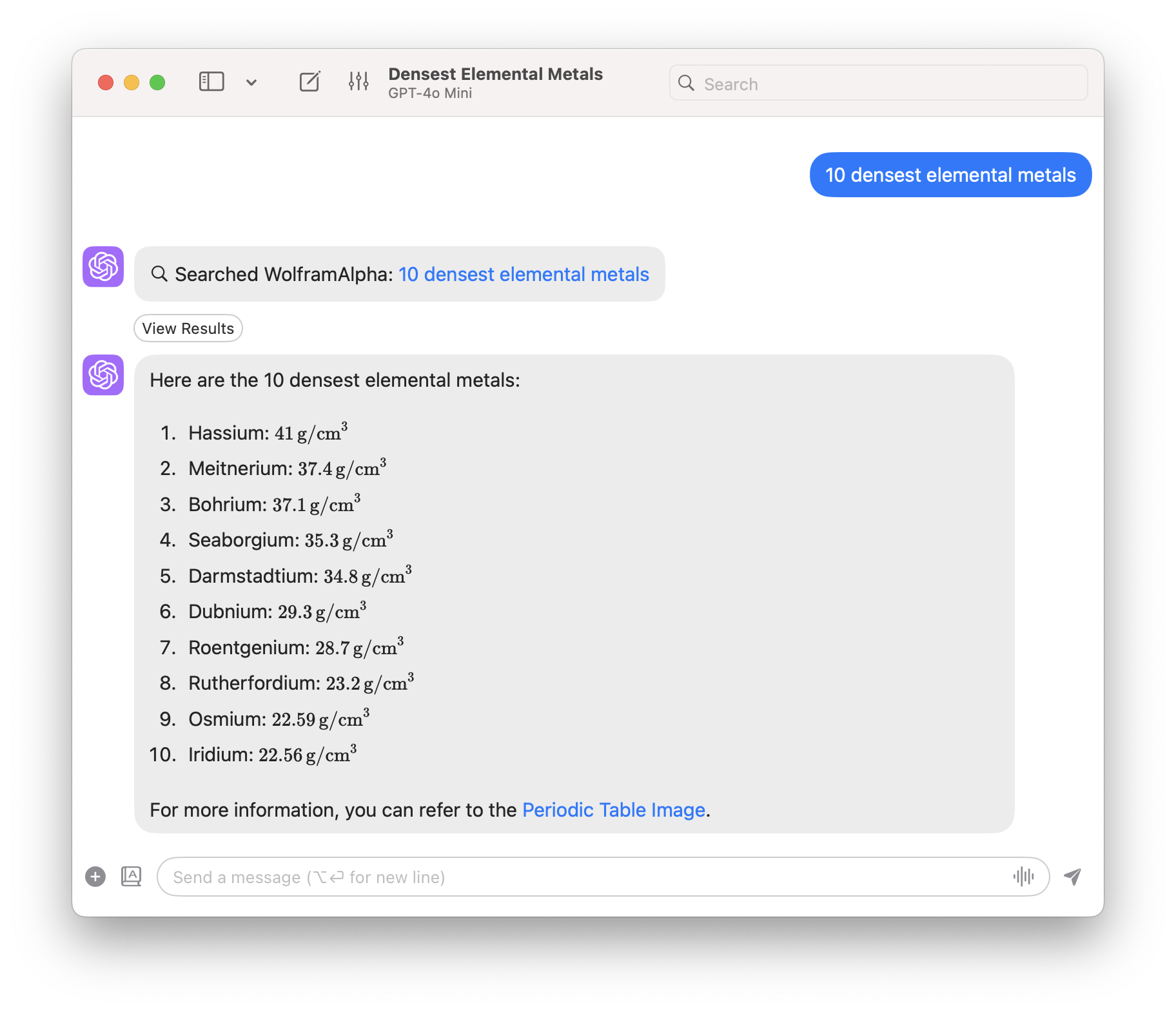
The WolframAlpha plugin allows BoltAI to search for optimized data from the WolframAlpha using the WolframAlpha LLM API.
### How to set up the WolframAlpha plugin?
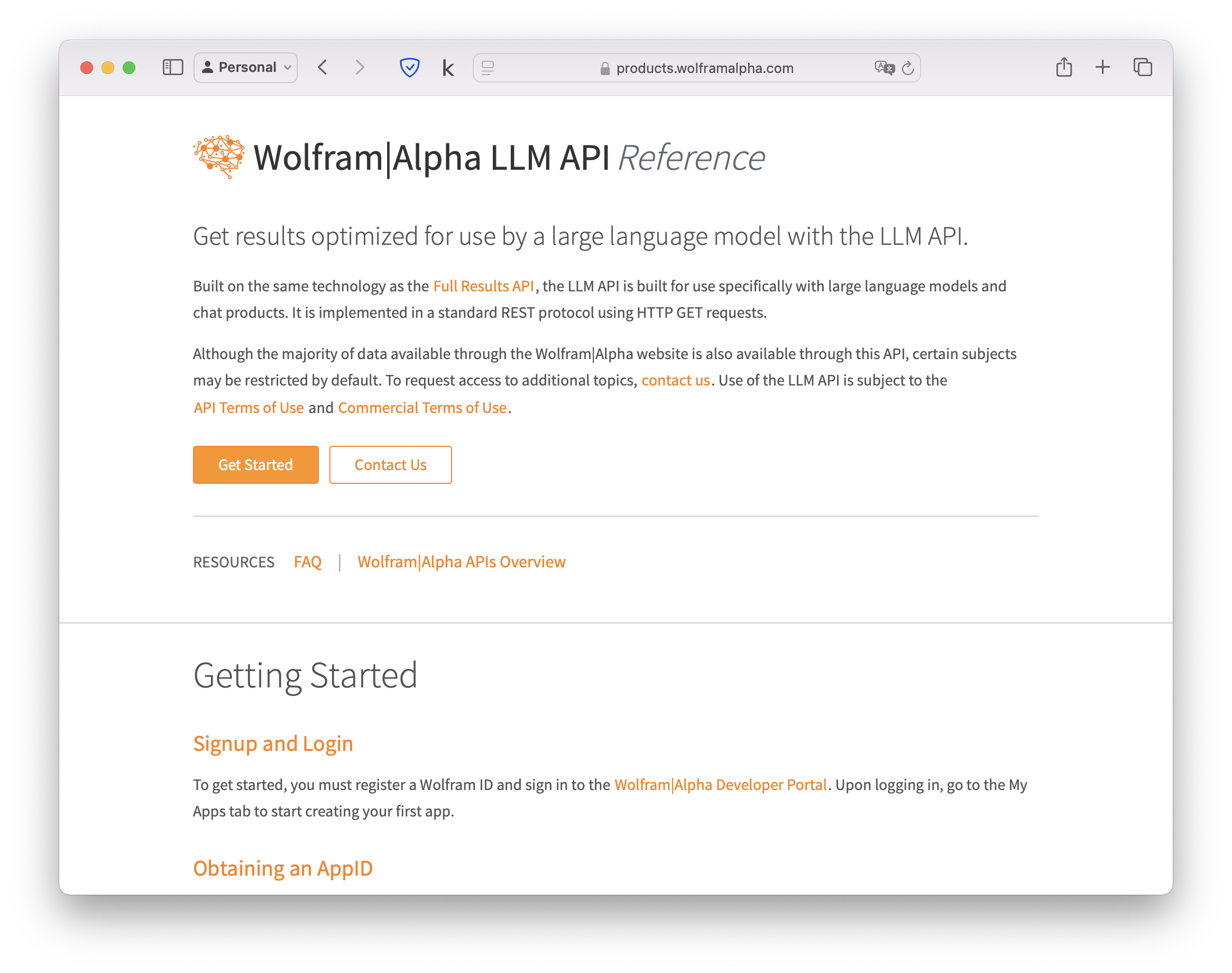
1. Make sure you have generated a WolframAlpha AppID. Follow [this official guide](https://products.wolframalpha.com/llm-api/documentation) to get started.
2. Go to Settings > Plugins > WolframAlpha. Select tab `Settings` then enter your AppID.
Signup for a Wolfram ID and Obtain an AppID
### How to use the WolframAlpha plugin?
It's similar to the Web Search Plugin.
1. Start a new chat. Choose an LLM that supports Function Calling (for example GPT-4o)
2. Enable the WolframAlpha plugin.
3. Enter your prompt. BoltAI should smartly decide if it needs to ask WolframAlpha for more data.